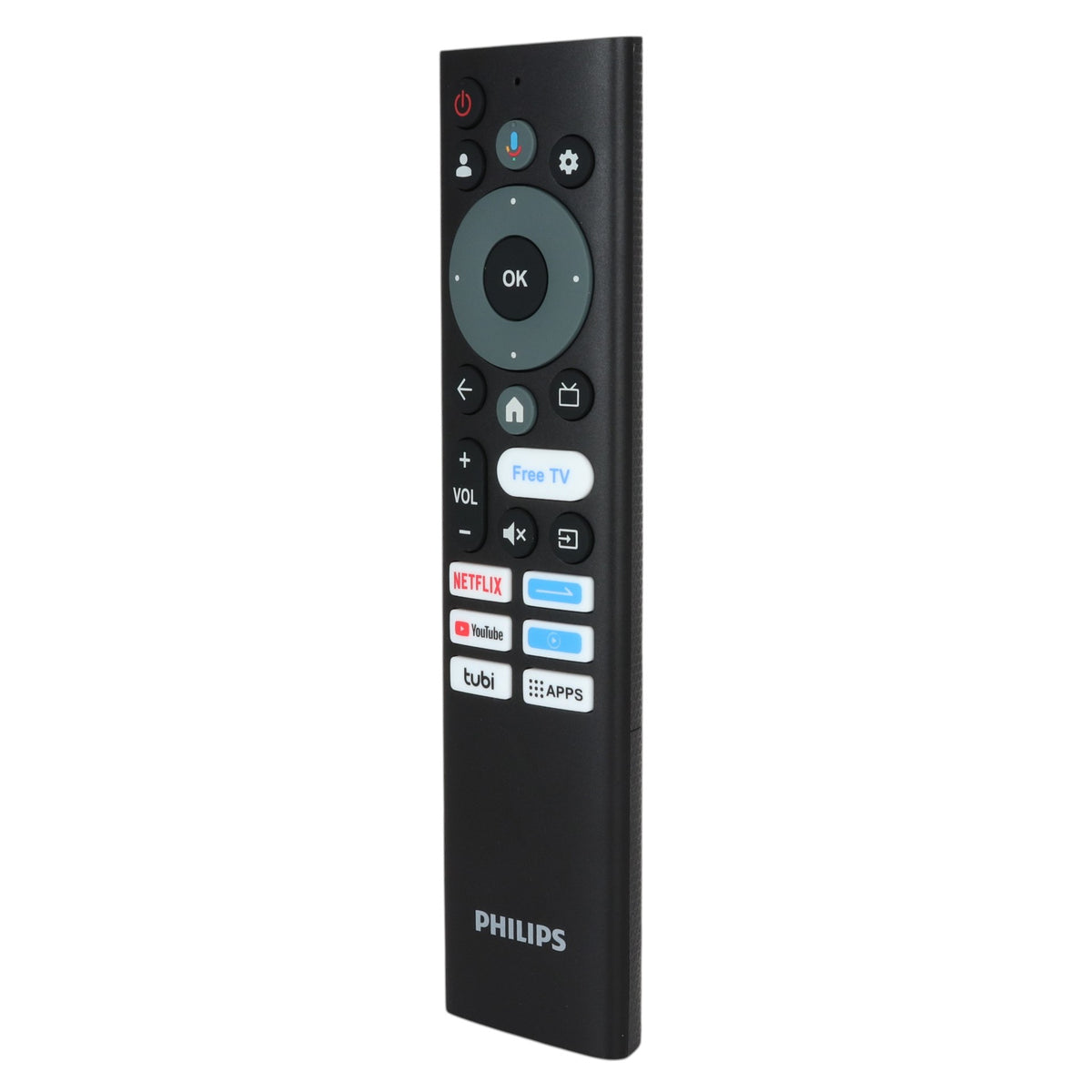
PHILIPS HS-8AD Google Smart TV Remote Control with Voice - HS-8AD

Save 19%

Price:
Sale price$29.95 Regular price$36.95
Stock:
In stock (943 units) | Same day shipping*

Key Features

  • Works with Philips 32PFL6446/F7, 60PQL7456/F7. Also replaces: Philips RC860G.
  • Insert 2 AAA batteries and pair it with the TV; no programming is needed.
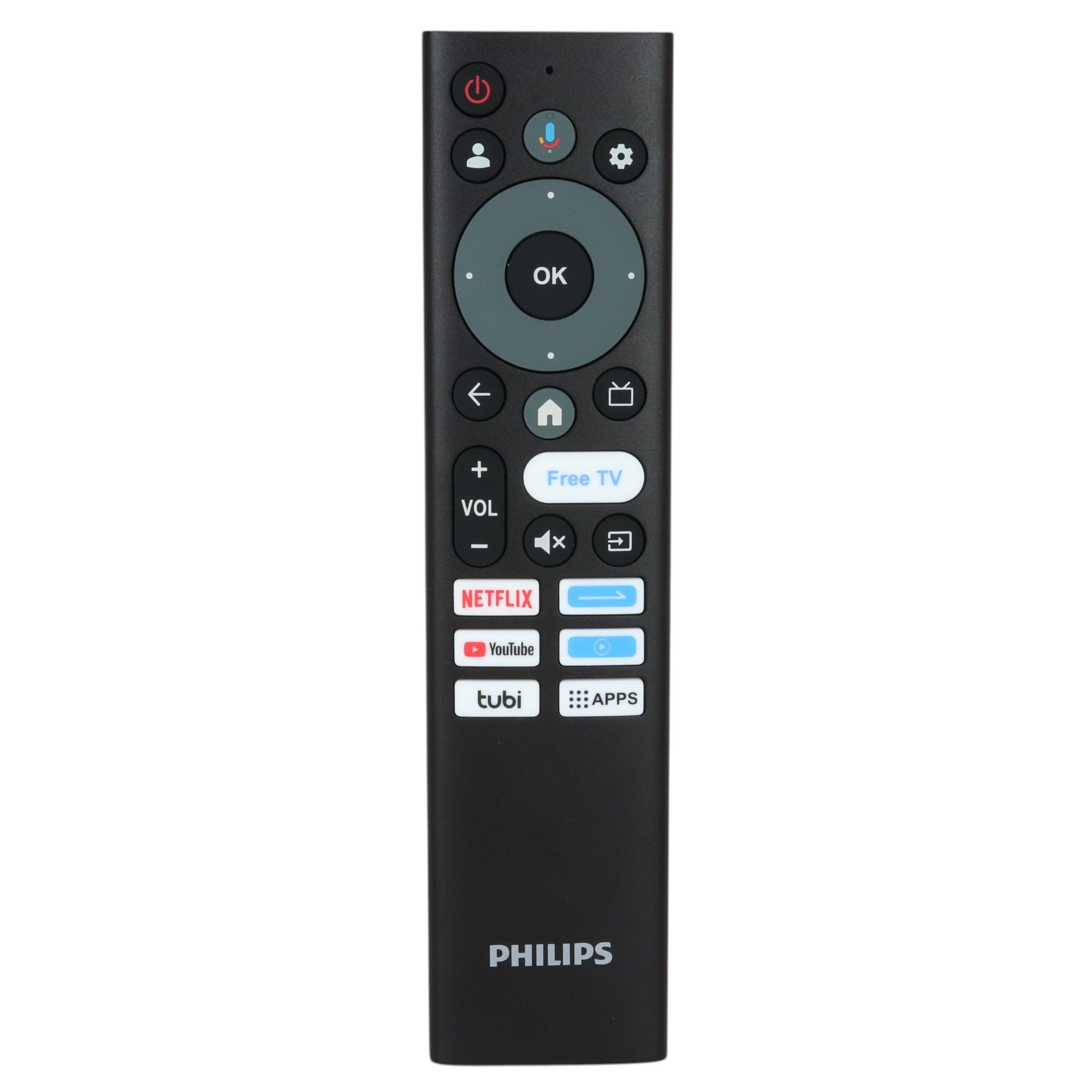
  • Voice search, app launch and TV control with Google Assistant; Shortcut buttons for popular streaming services.
  • It replaces the Philips RC860G, with a different button and shortcut layout.
  • Uses 2 AAA batteries, not included.

ETA Update: Will be available by Aug 14, 2026

Description

Specifications

Compatible Substitutes and Related Products

  • 5 stars: 5 (100%)
  • 4 stars: 0 (0%)
  • 3 stars: 0 (0%)
  • 2 stars: 0 (0%)
  • 1 star: 0 (0%)
M
Michael Bough

Exactly what I needed. Works great.

M
Maria Olivia Garza

The remote is fantastic. It’s like the original didn’t even have to do anything but put batteries in it and it automatically connected to my TV. Love it. Thank you.

Hi there! We're thrilled to hear you're enjoying your new remote and that it connected so seamlessly. Thanks for sharing your experience!

K
Kathy Gagliardi

Great remotes,easy to use and very well made.

Hi Kathy, we're thrilled to hear you love the remote! Thanks for sharing your positive experience.

E
Earl Vaughan Jr.

Will this work with Philips Google Smart TV (75PUL7552/F7)?

Anderic

Yes — the HS-8AD is the original remote for the Philips PUL7552 Google
TV series, and it works with your 75PUL7552/F7. The basic functions
(power, volume, channels, navigation) work right out of the box. To
use the voice/Google Assistant button, pair the remote to your TV over
Bluetooth: on the TV go to Settings > Remotes & Accessories > Add
accessory, then press and hold the Home and Back buttons on the remote
together until the TV finds it and select it to pair.

D
Delores

How do I puse a movie on Netflix

Anderic

Hi! Thanks for your question. With the PHILIPS HS-8AD remote, you can
pause a movie on Netflix by pressing the Play/Pause button on the
remote while the video is playing. Alternatively, you can use the
voice control: press and hold the microphone (Google Assistant) button
on the remote, say "Pause", then release the button. (Note: hold the
voice button while giving the command and release it only after you
finish speaking.)

Recently viewed